
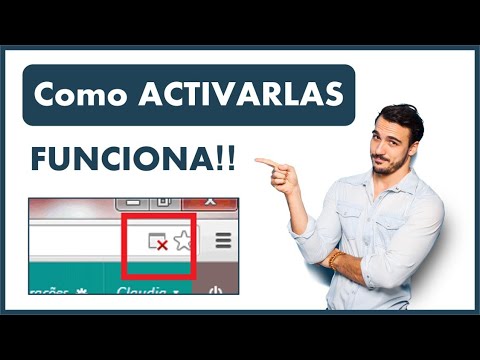
Nowadays, it's common to encounter pop-up ads while browsing the internet that interrupt our browsing experience. These ads can be annoying and even dangerous if they contain malware. For this reason, it's important to know how to configure the pop-up blocker in our browser. In this tutorial, we'll explain how to do it easily so you can browse more safely and comfortably.
If you're a frequent internet user, you've probably experienced pop-up windows while browsing. These windows can be distracting and, in some cases, may contain malicious content that could harm your computer. For this reason, many web browsers have built-in pop-up blockers that allow you to control their appearance on your screen. In this article, we'll show you how to configure your browser's pop-up blocker so you can enjoy a distraction-free and risk-free browsing experience.
How to enable the pop-up blocker: Most web browsers have the pop-up blocker enabled by default. However, in some cases, you may have accidentally disabled it. To re-enable it, follow these steps:
Google Chrome: Click the three-dot icon in the upper-right corner of the screen and select "Settings." In the "Privacy and security" section, click "Site settings" and then "Pop-ups and redirects." Here, you can enable or disable the pop-up blocker according to your preferences.
Mozilla Firefox: Click the three-line icon in the upper-right corner of the screen and select "Options." In the "Privacy & Security" section, click "Pop-up Blocking" and select "Block Pop-ups" to enable the pop-up blocker.
Microsoft Edge: Click the three-dot icon in the upper-right corner of the screen and select "Settings." In the "Privacy, search, and services" section, click "Cookies and site permissions" and then "Pop-ups and redirects." Here, you can enable or disable the pop-up blocker according to your preferences.
How to disable your pop-up blocker: In some cases, you may need to disable your pop-up blocker to access certain websites that use pop-up windows to display important information. To disable your pop-up blocker, follow these steps:
Google Chrome: Click the three-dot icon in the upper-right corner of the screen and select "Settings." In the "Privacy and security" section, click "Site settings" and then "Pop-ups and redirects." Here, you can disable the pop-up blocker by selecting the "Allow all sites to show pop-ups" option.
Mozilla Firefox: Click the three-line icon in the upper-right corner of the screen and select "Options." In the "Privacy & Security" section, click "Pop-up Blocking" and select "Allow all pop-ups" to disable the pop-up blocker.
Microsoft Edge: Click the three-dot icon in the upper-right corner of the screen and select "Settings." In the "Privacy, search, and services" section, click "Cookies and site permissions" and then "Pop-ups and redirects." Here, you can disable the pop-up blocker by selecting the "Allow all pop-ups" option.
Learning how to enable and disable this feature will allow you to customize your browsing experience based on your needs and preferences.
Pop-up Blocker Location: How to Find It Easily
When browsing the internet, it's common to encounter annoying pop-up windows that interrupt us while we're on a website. These windows can be ads, notifications, or even malware that can harm our computer. That's why it's important to have a pop-up blocker in our browser to avoid these unwanted interruptions.
Most internet browsers have a built-in pop-up blocker. However, the location of this blocker can vary depending on the browser you're using, which can make it difficult to configure.
To find the pop-up blocker in Google Chrome, we must follow these steps:
- Open Google Chrome and click on the three dots icon at the top right corner of the screen.
- Select "Settings" from the dropdown menu.
- Scroll down and click on “Advanced”.
- Find the “Privacy and Security” section and click on “Website Settings.”
- Find the “Pop-ups and Redirects” option and make sure it’s enabled.
On the other hand, if we use Mozilla Firefox, we must do the following:
- Open Mozilla Firefox and click the three-line icon in the upper right corner of the screen.
- Select "Options" from the dropdown menu.
- Find the "Privacy and Security" section and click "Content Blocking."
- Select the “Pop-up Windows” option and make sure it’s enabled.
By knowing the location of this blocker in our browser, we can activate it and enjoy a smoother and safer browsing experience.
How can you tell if pop-up blocking is active in your browser? It's a common question many users ask when configuring their browser. Pop-ups are windows that appear on your screen without your consent, and they can be annoying or even dangerous. That's why many browsers include a pop-up blocker to protect users from these threats.
To find out if pop-up blocking is active in your browser, you must first open a web page that has pop-ups. If the pop-up blocker is activated, a notification will appear at the top of the screen indicating that pop-ups have been blocked. You can also check your browser settings to make sure the pop-up blocker is activated.
In Google Chrome, for example, you can access your pop-up blocker settings by clicking the three-dot icon in the top right corner of the screen and selecting "Settings." Then, find "Privacy and security" in the left menu and click "Site settings." Here, you'll find "Pop-ups and redirects," where you can enable or disable the pop-up blocker.
In Mozilla Firefox, the pop-up blocker settings are located in the options menu. Click the three-line icon in the upper right corner of the screen and select "Options." Then, find the "Privacy and Security" section in the left menu and click "Content Blocking." Here you'll find the "Block Pop-Ups" option, which you can enable or disable.
If you have any questions about how to configure the pop-up blocker in your browser, please feel free to consult the official documentation or seek assistance online.
Disabling Pop-Up Blockers: Step-by-Step Guide
Every time we browse the internet, we encounter a large number of pop-up windows that appear on our screen without warning. In most cases, these pop-ups are advertisements or alert messages that can be quite annoying for the user.
For this reason, many browsers have a built-in pop-up blocker that helps us avoid the appearance of these unwanted windows. However, on some occasions, we may need to disable this blocker to view important content or access certain websites.
If you need to disable the pop-up blocker in your browser, follow these simple steps:
Step 1: Open your web browser and look for the settings or configuration option. In most cases, this option is represented by a three-dot icon located in the upper right corner of the screen.
Step 2: Once you've found the settings option, click on it and look for the privacy and security section. In this section, you'll find an option that says "Pop-up blocker" or "Pop-ups."
Step 3: Click on the pop-up blocker option to expand the settings. In this section, you can disable the pop-up blocker temporarily or permanently, depending on your needs.
Step 4: If you want to temporarily disable the pop-up blocker, select either "Always allow" or "Temporarily allow" to permit pop-ups on the page you're currently visiting. Keep in mind that this setting only applies to the current page, and the blocker will reactivate once you close the browser window.
Step 5: If you want to permanently disable the pop-up blocker, select the "Off" or "Don't block" option. Keep in mind that this option may increase the risk of unwanted pop-ups and should only be used in special cases.
Therefore, it is advisable to use it with caution and only in truly necessary cases.